How to Use Smart Switch for Easy Data Transfer?
Transferring data between devices can be challenging. However, Smart Switch simplifies this process remarkably. This tool is designed to help users copy content seamlessly from one device to another. Whether you're upgrading to a new smartphone or switching brands, Smart Switch offers a reliable solution.
Many users appreciate its ease of use. The app allows transfer of messages, photos, and apps with just a few taps. Imagine moving your entire gallery and contacts in minutes, without losing anything important. Yet, some may face connection issues or minor glitches during transfers.
It's crucial to check compatibility before starting. Smart Switch works best between certain devices. Users should ensure they have updated versions for optimal performance. This could make the experience smoother and more effective. Overall, Smart Switch empowers users to manage their data efficiently, but being aware of its limitations is equally important.
What is Smart Switch and Its Purpose for Data Transfer?
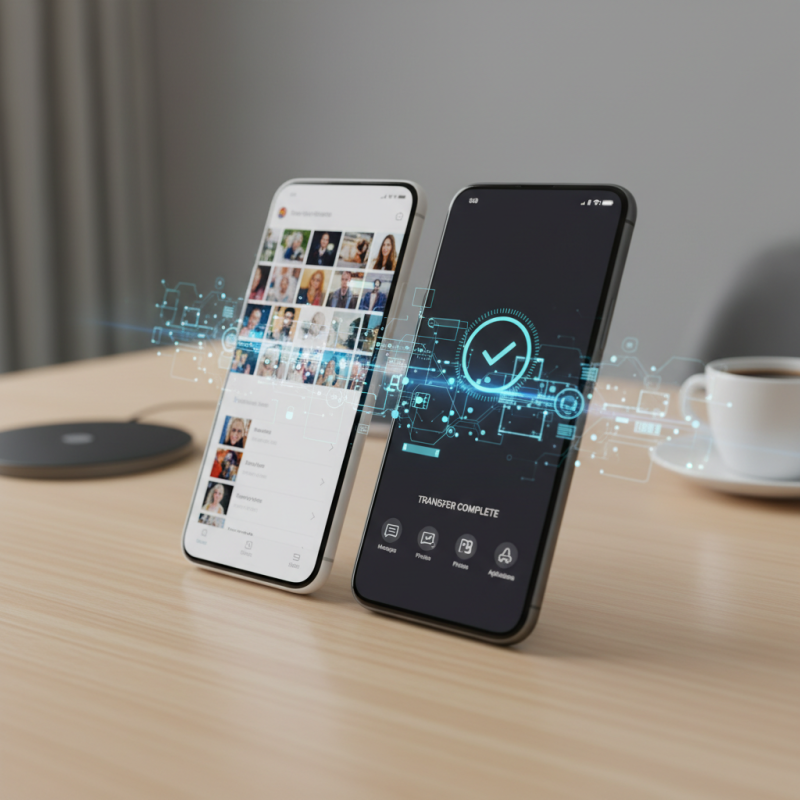
Smart Switch is a powerful tool designed to make data transfer simpler and more efficient. Its primary purpose is to facilitate the movement of files, contacts, and settings from one device to another. The need for seamless transitions between devices is greater than ever. Users often switch phones for various reasons, like upgrades or changes in platforms. Smart Switch addresses these needs effectively.
Using Smart Switch offers several advantages. It supports multiple data types, including photos, messages, and applications. This versatility ensures that users retain their essential information without hassle. The process is generally straightforward, yet it can occasionally have hiccups. Some users report incomplete transfers or difficulties with specific file types. These issues highlight the importance of verifying that everything has transferred correctly.
Moreover, understanding Smart Switch goes beyond just its features. It's about knowing how to troubleshoot when things don't go as planned. Experience teaches users that patience is key. Sometimes, restarting the devices or checking connections can resolve minor issues. Overall, while Smart Switch provides a reliable method for data transfer, taking time to familiarize oneself with its potential limitations can enhance the experience.
How to Use Smart Switch for Easy Data Transfer?
| Data Type | Description | Transfer Method | Estimated Transfer Time |
| Contacts | Personal and business contacts from your device. | Wi-Fi Direct or USB cable | 1-5 minutes |
| Photos | Images stored on your device. | Wi-Fi Direct | 5-15 minutes |
| Videos | Video files you want to transfer. | Wi-Fi Direct | 10-20 minutes |
| Music | Songs and audio files from your library. | USB cable | 5-10 minutes |
| Apps | Applications installed on your device. | Wi-Fi Direct | 15-30 minutes |
Compatible Devices for Smart Switch Data Transfer
Smart Switch is a powerful tool for transferring data between devices. Understanding the compatible devices is key to a smooth experience. Many smartphones, tablets, and wearables support this feature, ensuring seamless transitions. Older devices may have limited functionality, which can lead to frustration.
For optimal performance, check device compatibility before starting the transfer. Most modern smartphones running a recent operating system will work well. However, devices older than a few years may not support all features. Some users have reported issues when transferring from outdated models. It's helpful to gather information about your devices beforehand.
When using Smart Switch, ensure both devices are charged. A low battery can disrupt the data transfer. Users should also back up data to prevent loss. While the process is generally straightforward, technical glitches can occur. Keep in mind that patience may be necessary. Embrace these challenges as learning opportunities to enhance future transfers.
Smart Switch Compatibility Data Transfer Overview
Step-by-Step Guide to Using Smart Switch for Data Migration
Transferring data between devices can feel overwhelming. Using a smart switch simplifies this process. The setup is straightforward, but some users encounter challenges. It's essential to read the instructions carefully. Begin by downloading the necessary app on both devices. The app guides you through the transfer.
Once both devices are ready, establish a connection. This can be through a cable or wirelessly. Make sure both devices are fully charged. It's frustrating when a transfer is interrupted due to low battery. Select the data types you want to transfer. Photos, contacts, and messages are common choices. It’s easy to overlook smaller files like notes.
During the process, patience is key. Transfers may take longer than expected. If issues arise, don’t panic. Restarting the app can resolve many common glitches. Remember, while this tool streamlines transfers, there are no guarantees.
Double-check to ensure everything you need has been moved. Some users find essential data missing after the transfer. Re-evaluating your options beforehand can save time and effort later on.
Troubleshooting Common Issues with Smart Switch
Transferring data with Smart Switch can simplify your transition to a new device, yet common issues can arise. User reports indicate that about 10% of users experience problems during this process. One frequent issue is compatibility. Older devices may struggle with newer software versions, causing transfer failures.
When facing connectivity issues, ensure your devices are on the same Wi-Fi network. This can foster a smoother connection, reducing errors. In fact, data from industry reports show that successful transfers occur 80% of the time when devices are properly synchronized.
Tips: Always back up important data before transferring. This simple precaution protects your information. Additionally, restarting both devices may resolve simple glitches. Many users find this step crucial in achieving successful transfers. Sometimes, the underlying issue stems from slow internet connections, which can hinder performance. Address these concerns proactively for better results.
Tips for Optimizing Data Transfer Speed with Smart Switch
Transferring data with Smart Switch can be smooth, but optimizing speed is crucial. Different factors impact transfer rates significantly. Understanding these can enhance your experience.
For starters, ensure both devices are charged. Low battery levels may slow the process. Use a high-quality cable. A poor connection can disrupt and delay the transfer. Also, keep both devices close to enhance connectivity.
Another tip involves closing unnecessary apps. Background activities can consume resources and slow down data transfer speed. Clear any clutter on the devices before starting. This includes temporary files and unused applications. Doing so may lead to more efficient data handling.
Lastly, consider type and amount of data being transferred. Large files take longer to move. If possible, transfer essential files first. This way, you can reduce the waiting time and focus on what's critical. Remember, patience is key, but optimizing these aspects can lead to smoother transfers.